Wget Trick to Download from Restrictive Sites
Before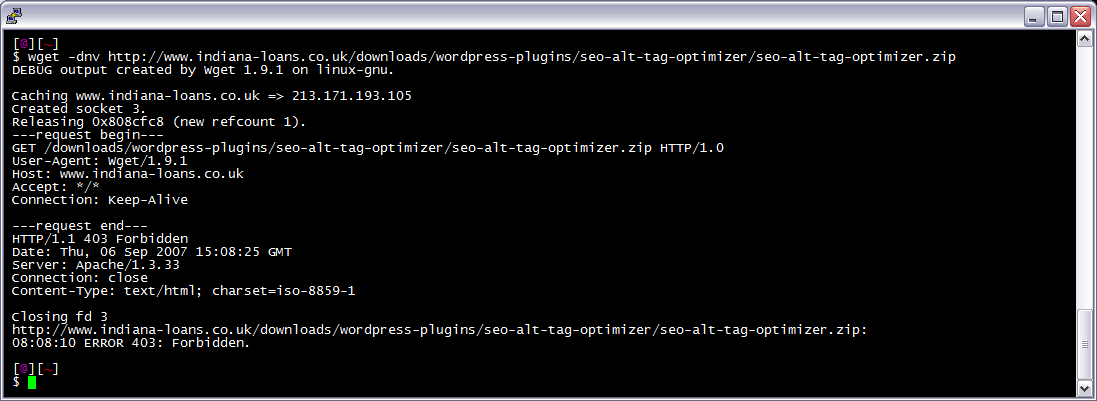 After trick
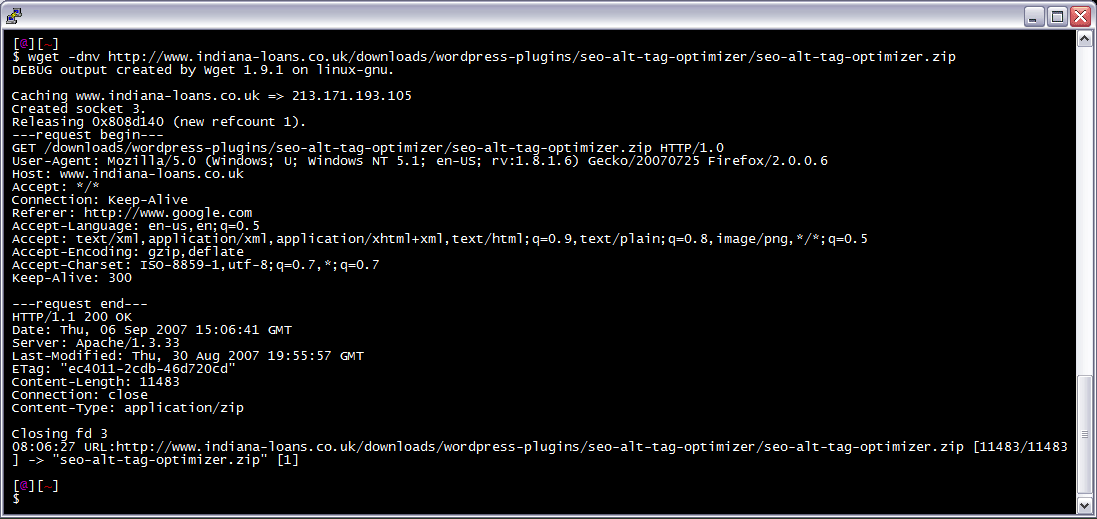 I am often logged in to my servers via SSH, and I need to download a file like a WordPress plugin. I've noticed many sites now employ a means of blocking robots like wget from accessing their files. Most of the time they use .htaccess to do this. So a permanent workaround has wget mimick a normal browser.
Testing Wget Trick
Just add the -d option. Like: $ wget -O/dev/null -d https://www.askapache.com
GET / HTTP/1.1
Referer: https://www.askapache.com/
User-Agent: Mozilla/5.0 (Windows NT 5.1; rv:10.0.2) Gecko/20100101 Firefox/10.0.2
Accept: text/html,application/xhtml+xml,application/xml;q=0.9,*/*;q=0.8
Host: www.askapache.com
Connection: keep-alive
Accept-Language: en-us,en;q=0.5
Wget Function
Rename to wget to replace wget.
function wgets()
{
  local H='--header'
  wget $H='Accept-Language: en-us,en;q=0.5' $H='Accept: text/html,application/xhtml+xml,application/xml;q=0.9,*/*;q=0.8' $H='Connection: keep-alive' -U 'Mozilla/5.0 (Windows NT 5.1; rv:10.0.2) Gecko/20100101 Firefox/10.0.2' --referer=https://www.askapache.com/ "$@";
}
Wget alias
Add this to your .bash_profile or other shell startup script, or just type it at the prompt. Now just run wget from the command line as usual, i.e. wget -dnv https://www.askapache.com/sitemap.xml.
alias wgets='H="--header"; wget $H="Accept-Language: en-us,en;q=0.5" $H="Accept: text/html,application/xhtml+xml,application/xml;q=0.9,*/*;q=0.8" $H="Connection: keep-alive" -U "Mozilla/5.0 (Windows NT 5.1; rv:10.0.2) Gecko/20100101 Firefox/10.0.2" --referer=https://www.askapache.com/ '
Using custom .wgetrc
Alternatively, and probably the best way, you could instead just create or modify your $HOME/.wgetrc file like this. Or download and rename to .wgetrc.wgetrc. Now just run wget from the command line as usual, i.e. wget -dnv https://www.askapache.com/sitemap.xml.
### Sample Wget initialization file .wgetrc by https://www.askapache.com
## Local settings (for a user to set in his $HOME/.wgetrc).  It is
## *highly* undesirable to put these settings in the global file, since
## they are potentially dangerous to "normal" users.
##
## Even when setting up your own ~/.wgetrc, you should know what you
## are doing before doing so.
header = Accept-Language: en-us,en;q=0.5
header = Accept: text/html,application/xhtml+xml,application/xml;q=0.9,*/*;q=0.8
header = Connection: keep-alive
user_agent = Mozilla/5.0 (Windows NT 5.1; rv:10.0.2) Gecko/20100101 Firefox/10.0.2
referer = https://www.askapache.com/
robots = off
Other command line
wget --referer="http://www.google.com" --user-agent="Mozilla/5.0 (Windows; U; Windows NT 5.1; en-US; rv:1.8.1.6) Gecko/20070725 Firefox/2.0.0.6" --header="Accept:
text/xml,application/xml,application/xhtml+xml,text/html;q=0.9,text/plain;q=0.8,image/png,*/*;q=0.5" --header="Accept-Language: en-us,en;q=0.5" --header="Accept-Encoding: gzip,deflate"
--header="Accept-Charset: ISO-8859-1,utf-8;q=0.7,*;q=0.7" --header="Keep-Alive: 300" -dnv https://www.askapache.com/sitemap.xml
Wget Alternative
Once you get tired of how basic wget is, start using curl, which is 100x better.
« Speed Tips: Turn On CompressionFirefox, Firebug, and yslow are REQUIRED »
Comments